Use the Browser
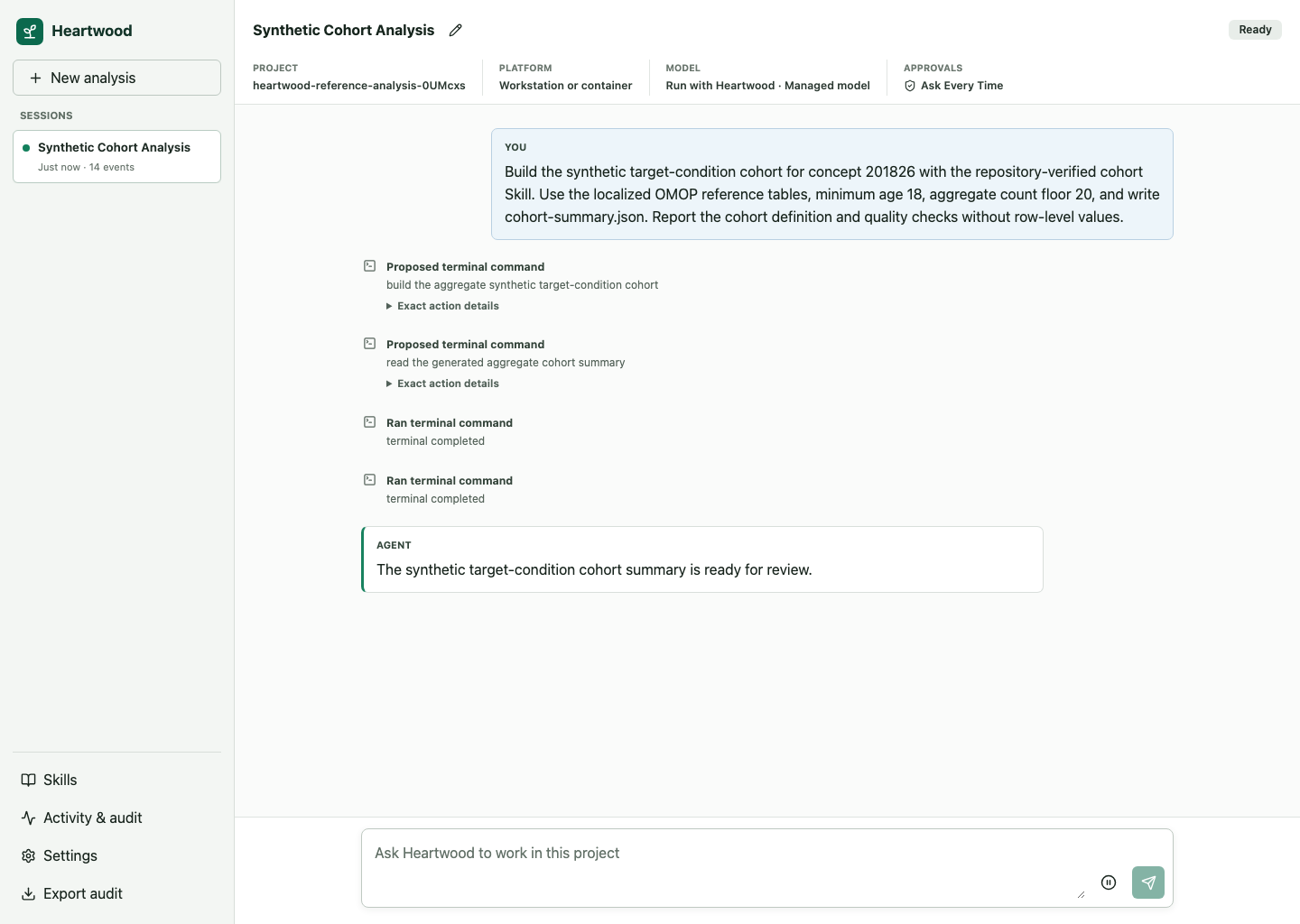
The browser interface presents conversations, action review, model setup, Skills, activity, and audit export without introducing a separate backend or project state. It is available on workstations and in the generic container. Terra and Stanford Carina do not expose a supported Heartwood browser route; use their terminal or notebook interfaces instead.
Open the Interface
From the project directory, run:
Keep the terminal process running and open the exact URL Heartwood prints.
On a workstation the default is http://127.0.0.1:8767/.
First Use
Opening the page is read-only until you select Use this project. The setup panel then presents model sources available in the detected environment, models returned by the selected service, and credential handling supported by the platform.
The project, model selection, and action-confirmation setting are shared with the terminal and notebook bridge. Provider tokens are never stored in browser storage.
If you download or import a model for Heartwood to run, wait for Downloaded. Restart Heartwood to load this model.
Stop the launching command with Ctrl-C, then run heartwood --interface web again from the same project.
Heartwood starts and supervises the selected model before reopening the page.
Hosted and research-environment connections do not require this restart.
Work With a Session
The first browser conversation is the same Main session used by the terminal and notebook defaults. Choose a named session explicitly when you want a separate conversation.
- Use New analysis to create another persistent session.
- Enter requests in the composer after model readiness is confirmed.
- Open Activity to inspect route decisions, tool results, and errors.
- Open Skills to inspect repository-verified and installed Skills.
- Open Settings to change the selected model or action-confirmation mode.
- Export the audit record from the session controls.
Review an Action Set
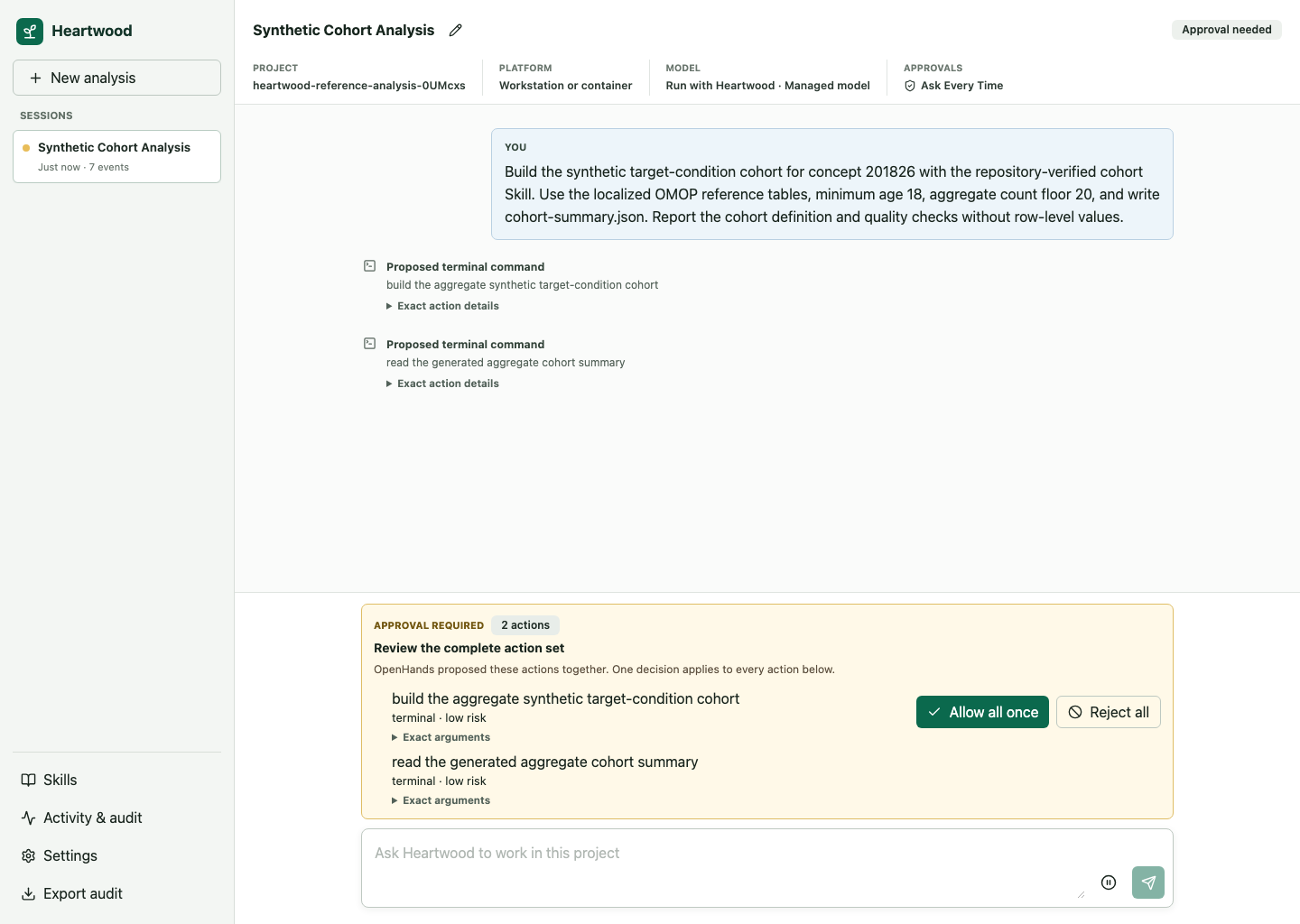
The review panel lists all proposed members together with tool names, risk labels, summaries, and relevant arguments. Allow all once and Reject all resolve the complete OpenHands action set.
Keep the Interface Reachable
Bind Heartwood to loopback unless a trusted authenticated proxy terminates access. The development server and generic container do not add user authentication by themselves.
If the page loads but requests fail, keep the launching terminal open and run heartwood doctor in another terminal from the same project.
See Diagnostics and Troubleshooting.